Sessions and energy history
Read your charging history per day and per month in the Sessions tab, see what each session recorded and download it as a spreadsheet file.
Ce guide n'est pas encore traduit dans votre langue. Vous le lisez en anglais.
The Sessions tab
Open the Sessions tab: the second icon at the bottom of the app, a bar chart. It shows every charge your charger delivered, measured by the charger's own meter.
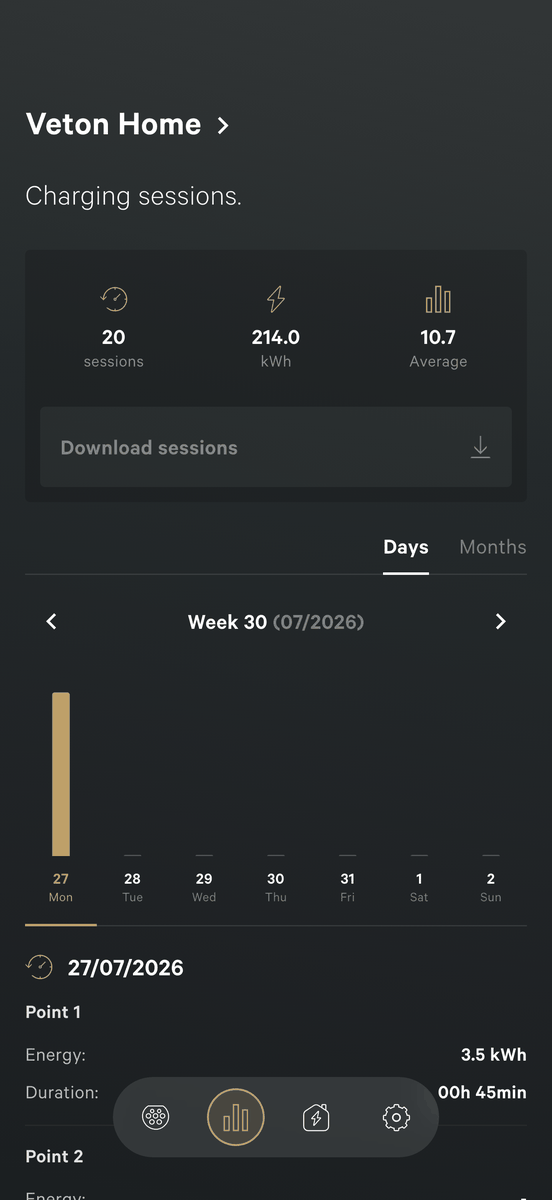
At the top a summary card shows the number of sessions, the total energy in kWh and the average energy per session. Below it a switch chooses between Days and Months.
- kWh is the amount of energy delivered. A car charging at 7 kW for one hour receives 7 kWh.
- A typical family car takes around 15 to 20 kWh per 100 km.
Days view
- Tap Days.
- Use the arrows to move a week back or forward. The header shows the week number and month.
- Each bar is one day. Tap a day to see its detail below the chart.
- The detail lists the energy and charging time for that day. A charger with several charging points shows one block per point.
Months view
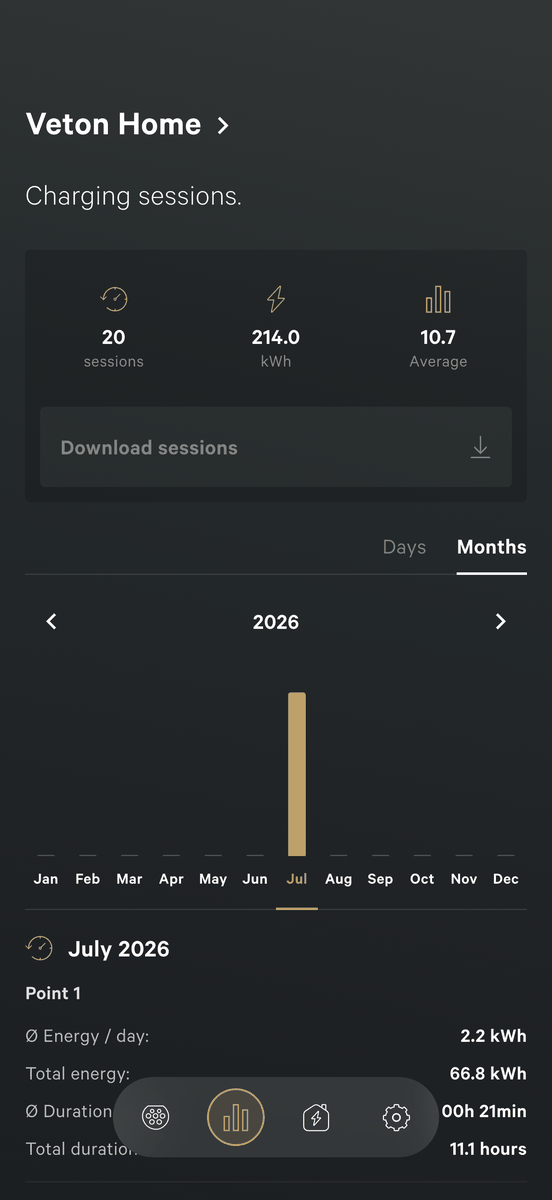
- Tap Months.
- Use the arrows to move a year back or forward.
- Each bar is one month. Tap a month for its detail.
- The detail shows, per charging point, the average energy per day, the total energy, the average duration and the total charging time.
What one session records
A session runs from the moment the car is plugged in until it is unplugged. For every session the charger keeps:
- the date and the charging point,
- the energy delivered in kWh,
- the duration,
- the start and end time.
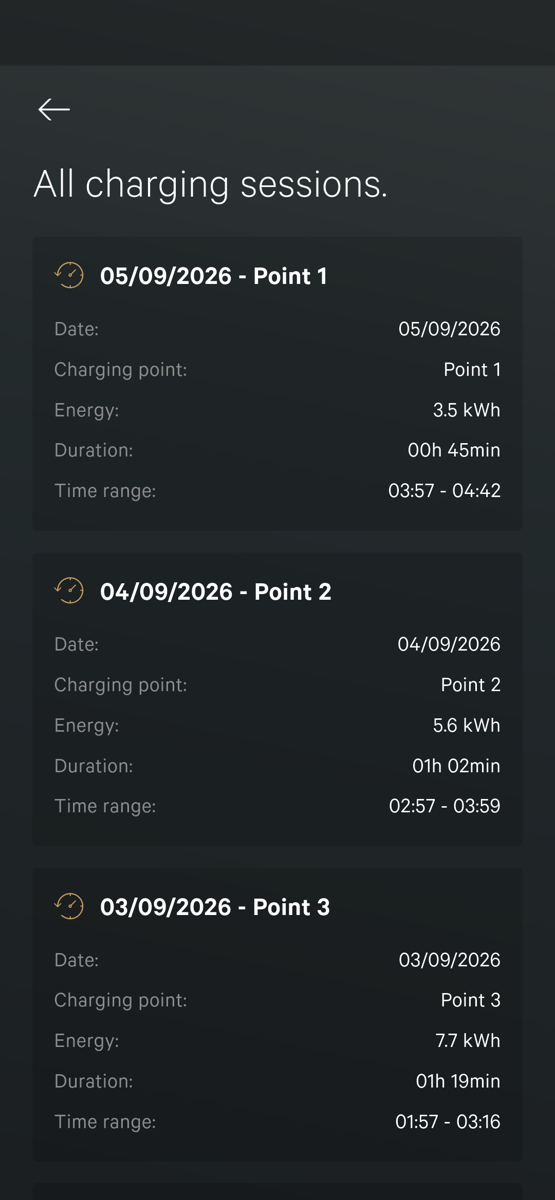
The Home tab shows the current or last session in a card at the bottom. Tap Consult charging sessions there to jump to this tab. In the Sessions tab, tap All charging sessions for the full list, newest first.
The app shows energy, not cost. Prices only appear on the Smart plan card of the Load balancing tab.
Download your sessions
You can export your history as a CSV file, a plain spreadsheet file that opens in Excel, Numbers or Google Sheets. Handy for expense claims or your own records.
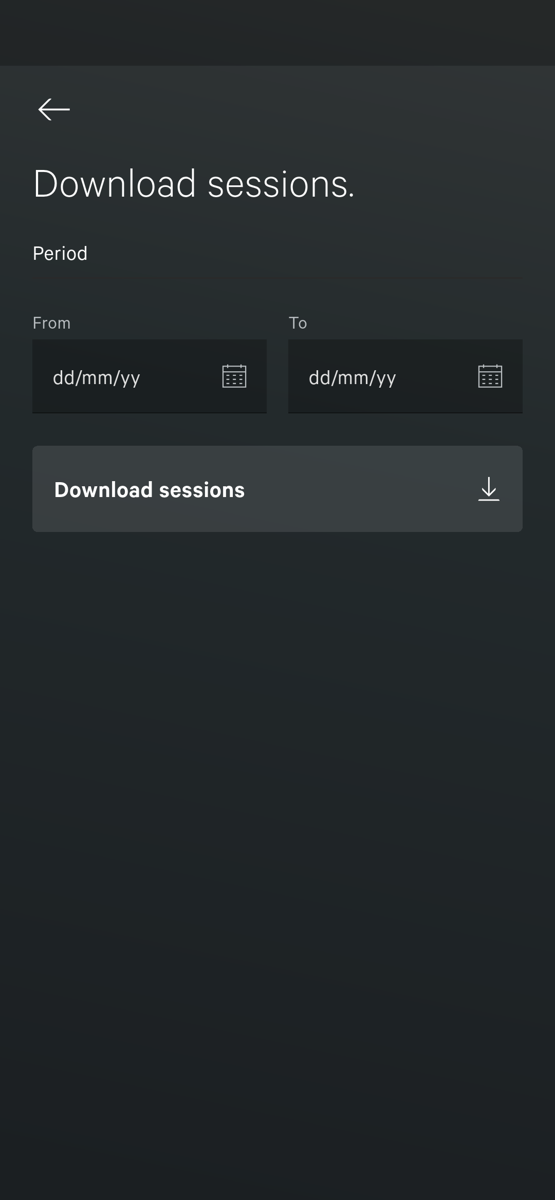
- Tap Download sessions on the summary card, or the download icon at the top of the full session list.
- Choose a From date and a To date.
- Tap Download sessions.
- Your phone opens its share sheet. Save the file, send it by e-mail or drop it into a cloud folder.
The file is the raw export of the charger, one line per session, with these columns: id, controller_uid, charging_point_id, start_time, end_time, energy_wh, rfid_tag, start_energy_wh, end_energy_wh. Energy is in watt-hours: divide by 1000 for kWh. There is no duration column; subtract start_time from end_time in your spreadsheet.
Where the numbers come from
The energy comes from the meter inside the charger, so it is the energy that actually went into the car. The history lives on the charger and is kept when the app is closed or the phone is offline. Signed in, you see the same history in the app on any phone and at v2.vetoncontrol.com.
Back to: charging modes and smart charging
Something not working? Ask your installer first. You can also reach Veton through the contact page.