Locations and sharing access
A location groups your chargers and the people who may use them; invite family or colleagues, give your installer remote access, and hand a charger over when you move.
Ce guide n'est pas encore traduit dans votre langue. Vous le lisez en anglais.
What a location is
A location is the group that owns your chargers. Everyone in it sees the same chargers in the app and on the web. When you claimed your first charger a location was created for you and you became its owner. Most homes have one location; a company can have several, one per site.
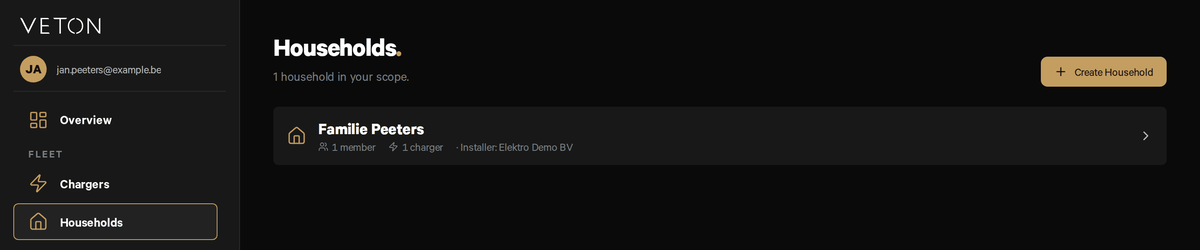
Locations in the sidebar lists yours with the number of members and chargers and the installer company linked to it. Click one to open it.
Rename, create or delete a location
- Open the location and click edit next to its name to rename it.
- Use Create Location on the Locations page for a second site.
- Delete location, in the Settings card, removes the location, unlinks every charger in it and removes every member. It asks you to confirm first. Move chargers you want to keep to another location before you delete. If you forget, you can add them back from Recently removed on the Chargers page for 30 days.
Invite a family member or colleague
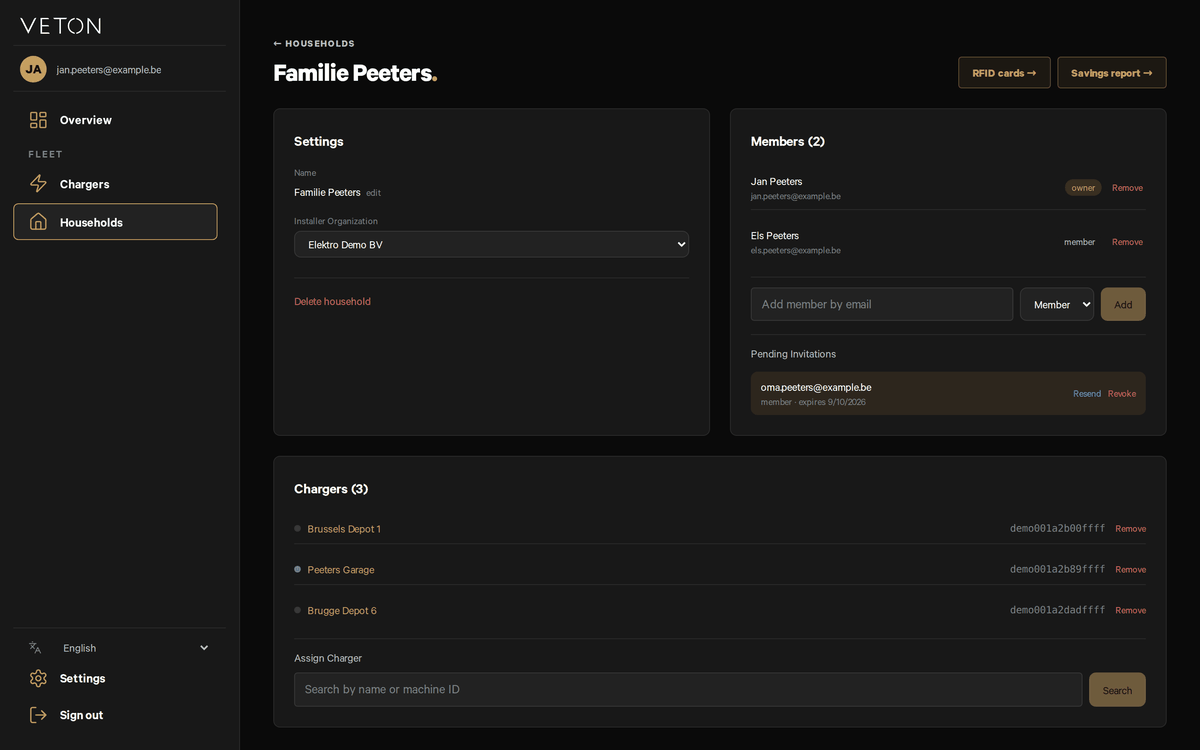
- Open the location and find the Members card.
- Type the person's e-mail address, choose Member or Owner, and click Add.
- They receive an e-mail with a link. If they have no Veton account yet, the link lets them create one.
- Until they accept, the invitation is listed under Pending invitations, where you can resend or revoke it.
An invitation link is valid for 7 days. After that, revoke it and send a new one.
Member or owner
- A member can see and use every charger in the location: watch it charge, change the charging mode, read sessions and add charge cards.
- An owner can do everything a member can, and also rename or delete the location, invite and remove people, choose the installer company, and attach or release chargers.
Remove next to a name takes that person out of the location. They lose access to its chargers at once.
Let your installer help remotely
The Installer organisation field in the Settings card names the company that installed or maintains your chargers. With it set, that company can see your chargers and their logs and adjust installer settings without a visit. Change it if you switch installers; clear it if you prefer nobody outside the location has access.
Chargers card
The Chargers card lists the chargers in the location. Assign a charger finds a charger by name and adds it, for instance a second charger you set up without adding it to an account.
Removing a charger
Only an owner of the location sees Remove next to a charger.
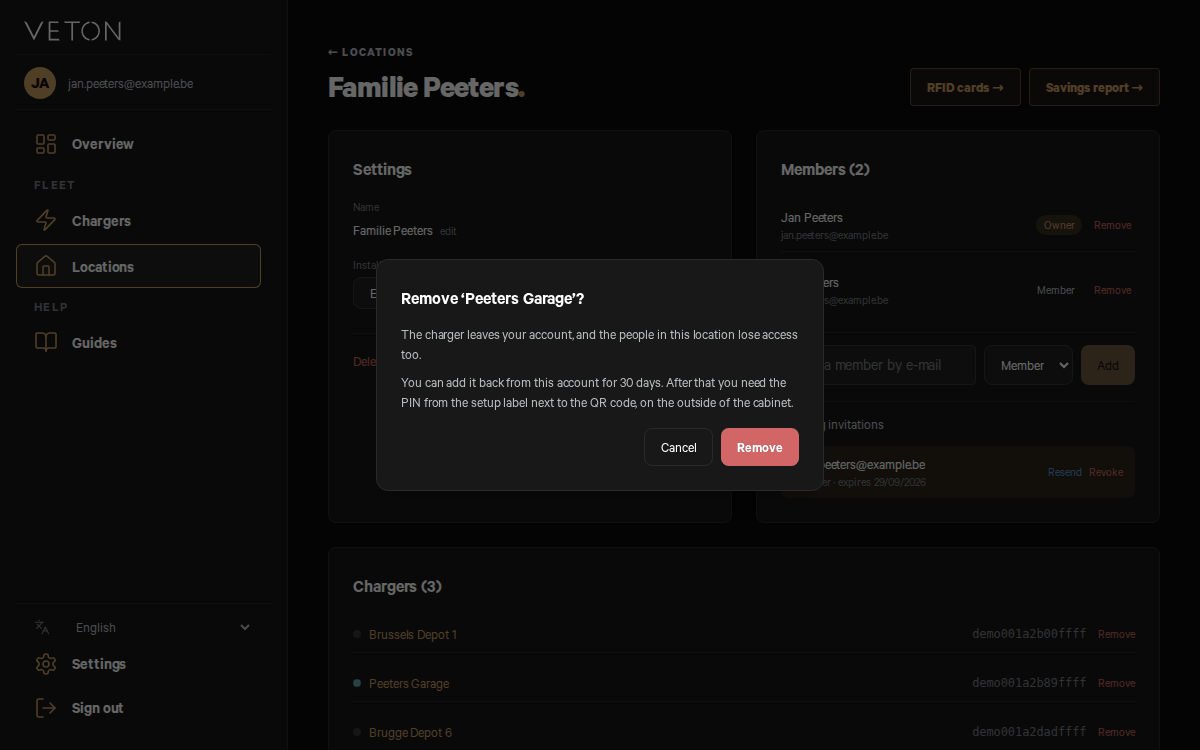
- Click Remove next to the charger in the Chargers card.
- The confirmation says what happens: the charger leaves your account and the people in this location lose access too. You can add it back from this account for 30 days; after that you need the PIN from the setup label next to the QR code, on the outside of the cabinet. Click Remove to confirm.
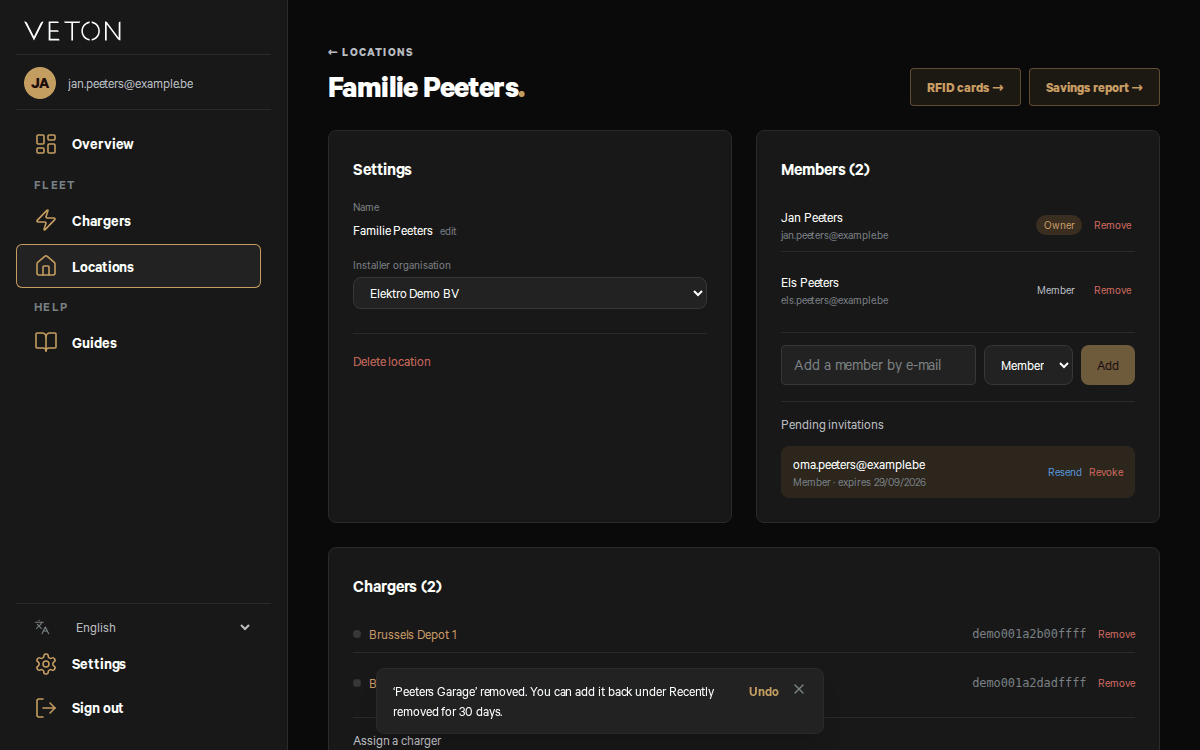
- A message confirms the removal and offers Undo. Click Undo to put the charger straight back.
An installer company linked to the charger itself stays linked after a removal.
Recently removed
For 30 days, a charger you removed is listed under Recently removed on the Chargers page, with the date until which you can add it back. Click Add back and it returns to your account, in the same location when it still exists and you are still its owner; otherwise in another location of yours.
- You can also add it back on the web setup page: scan the setup label and sign in with the same account. No setup PIN is needed. The Veton app still asks for the setup PIN here.
- A charger you removed in the app is listed there too.
- Only the account that removed the charger can add it back this way. The 30 days end early when someone else adds the charger to their account.
- After 30 days you need the setup PIN from the setup label, on the outside of the components cabinet.
Handing a charger over
When you move house, there are two ways to pass the charger on; both end with it in the next owner's location.
- Remove it yourself: click Remove on the charger in the Chargers card here, or in the app open Settings, Manage Chargers and use Delete Charger. The charger keeps working. The next owner scans the setup label, signs in and types the setup PIN from the label.
- Let the new owner set it up again: they scan the setup label, sign in, choose Set up again with the PIN and type the setup PIN. The wizard's Transfer ownership step moves the charger into their location, and you and the other owners of your location are told by e-mail.
Leave the setup label on the cabinet for the next owner.
Your installer can also move a charger between the locations linked to their company from the charger's page in the portal.
Charge cards for the whole location
RFID cards at the top of the location page opens the location's card list. A card added there is pushed to every charger in the location, so a family or team needs one list, not one per charger.
Something not working?
Ask your installer first. You can also reach Veton through the contact page.
Set up a charger from the QR label without the app
Open your locations S’ouvre sur un autre site