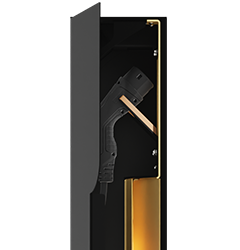
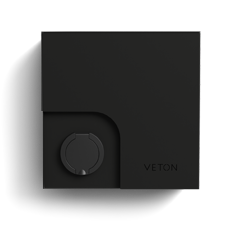
Set up a charger from the QR label without the app
Scan the QR label with any phone, enter the setup PIN and walk through the nine-step web wizard; add the charger to your account at the end if you like.
Ce guide n'est pas encore traduit dans votre langue. Vous le lisez en anglais.
When to use this
Every Veton charger ships with a setup label that carries a QR code and an 8-character setup PIN. If your phone has the Veton app, scanning the code opens the app's own wizard. If it does not, the same code opens a web page at v2.vetoncontrol.com and you can set the charger up in the browser. Nothing needs to be installed, and you do not need an account to configure a new charger.
This guide describes the web wizard, which has nine steps. The app wizard is described in the guide linked at the end; both write the same settings to the charger, so use whichever you have in your hand.
The setup label is on the outside of the charger's components cabinet. Keep it readable: you need the setup PIN on it to set up the charger without an account, and to add a charger that had another owner.
Open the setup page
- Open the camera on your phone and point it at the QR code on the setup label.
- Tap the link that appears. A page titled Set up this charger opens and names the charger. If the name is not the one you expect, you scanned another charger's label.
What you see next depends on the charger.
A new charger
If nobody has added the charger to an account before, the page leads with Sign in to add it — no code needed.
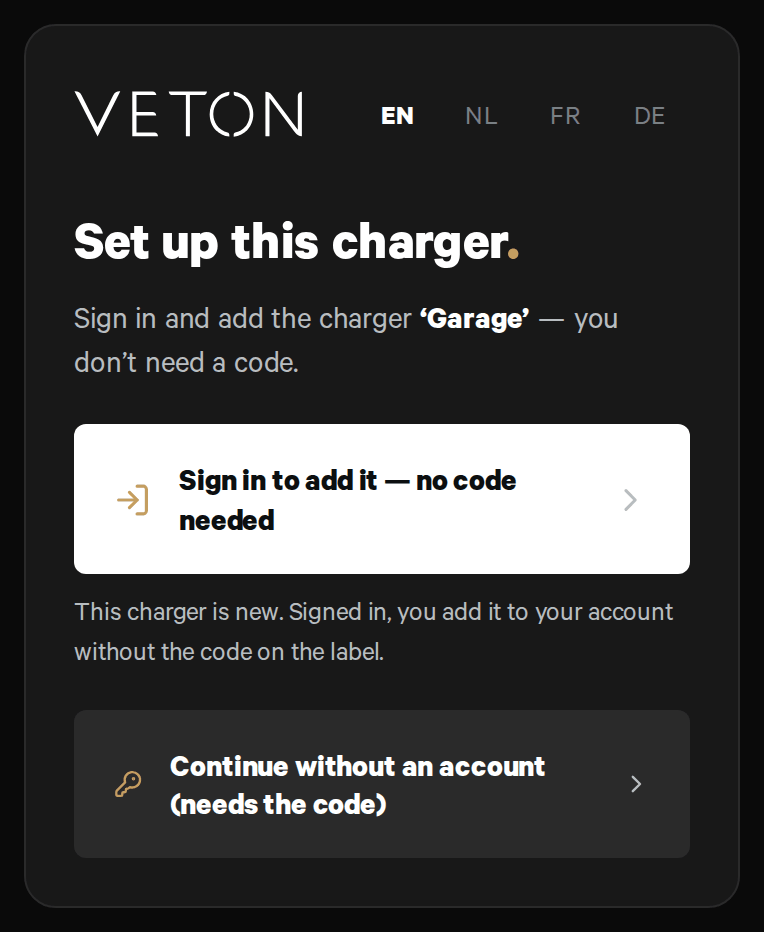
- Tap Sign in to add it — no code needed and sign in. You add the charger to your account without the setup PIN. Before you confirm, the page shows the serial number: check that it matches the serial number on the charger's label.
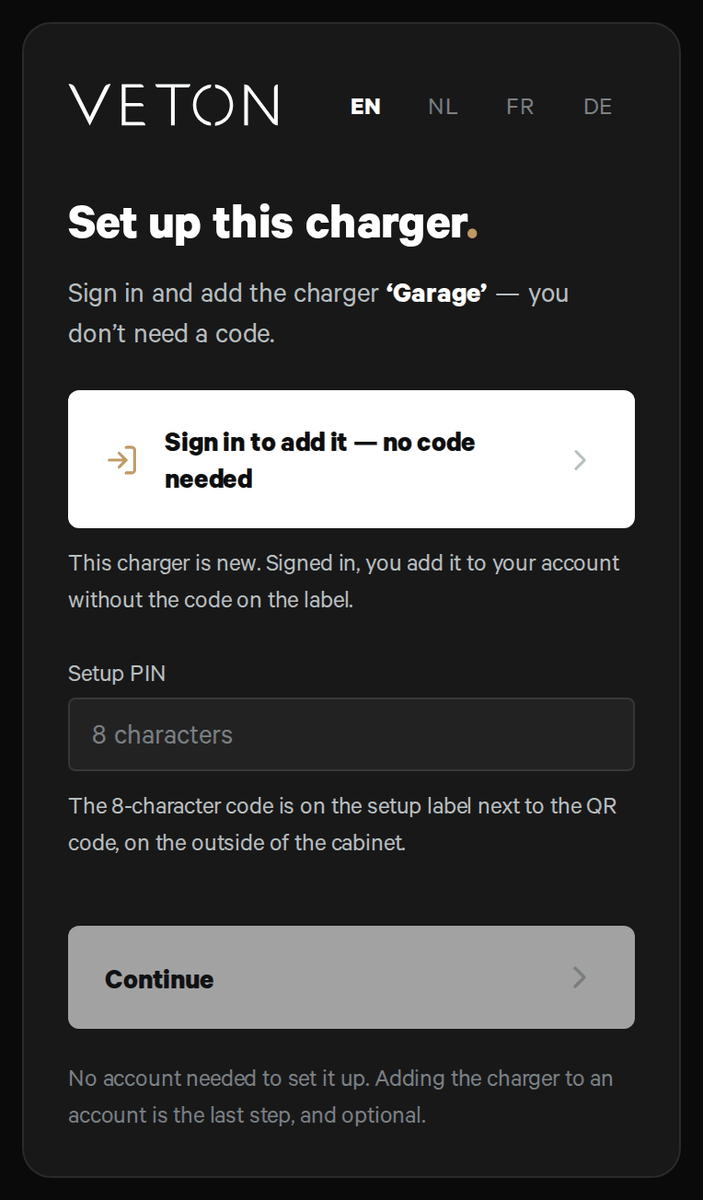
- Or tap Continue without an account (needs the code) to set the charger up without an account. The Setup PIN field opens: type the setup PIN from the label and tap Continue.
Earlier owner
A charger that was in an account before has to be added from an account. The page shows Was this charger in your account? Sign in above the Setup PIN field.
- Removed it from your own account in the last 30 days? Tap Was this charger in your account? Sign in, sign in with that account and tap Add it back. You do not need the setup PIN; the page says until which date this works.
- Otherwise, sign in and type the setup PIN from the label.
If you type the setup PIN first and it is right, the page says Your code is right and asks you to sign in.
Typing the PIN
- The setup PIN has 8 characters, digits and capital letters.
- Spaces, hyphens and lowercase letters are fine. The field shows what you type in capitals.
- O counts as 0, and I and L count as 1.
- Continue works once all 8 characters are in. A character that is never in a code, such as U, or a code that was already refused, is pointed out before it counts as a try.
Code refused
A new charger, or one you removed from your own account in the last 30 days? Sign in instead: you need no code, also while adding with the code is paused. See A new charger and Earlier owner above.
The Veton app does not have these routes yet: it asks for the setup PIN from the label. For a charger you removed yourself, you can also sign in at v2.vetoncontrol.com with the same account as in the app and add it back under Recently removed on the Chargers page.
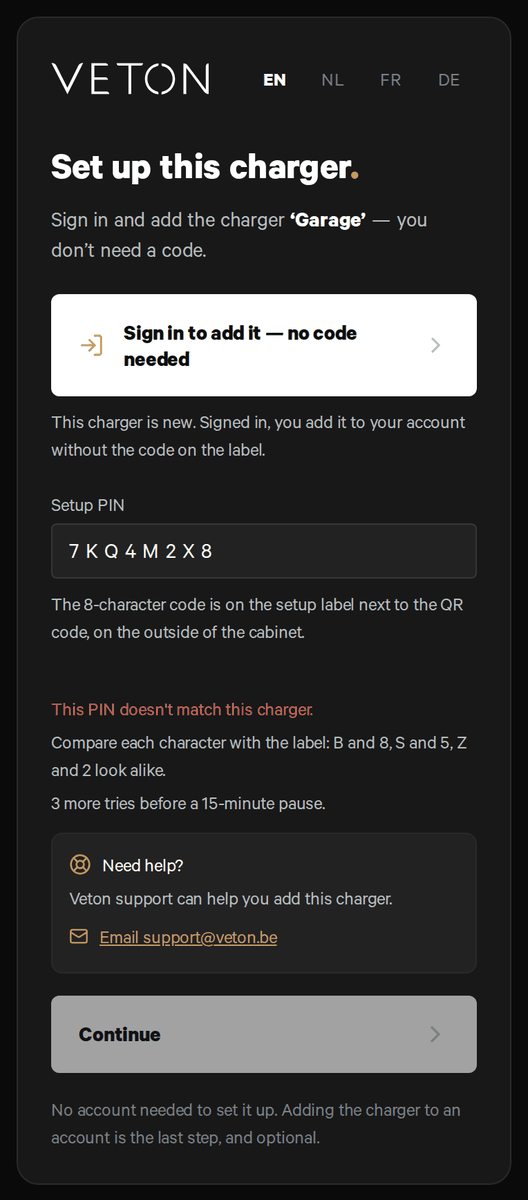
- The page says This PIN doesn't match this charger and asks you to compare each character with the label: B and 8, S and 5, Z and 2 look alike. It also says how many tries are left before a 15-minute pause.
- From the second refused code, a Need help? block appears. When the charger is linked to an installer company, it says your installer can add the charger for you; otherwise it points to Veton support. Its link e-mails Veton support.
Pause and lock
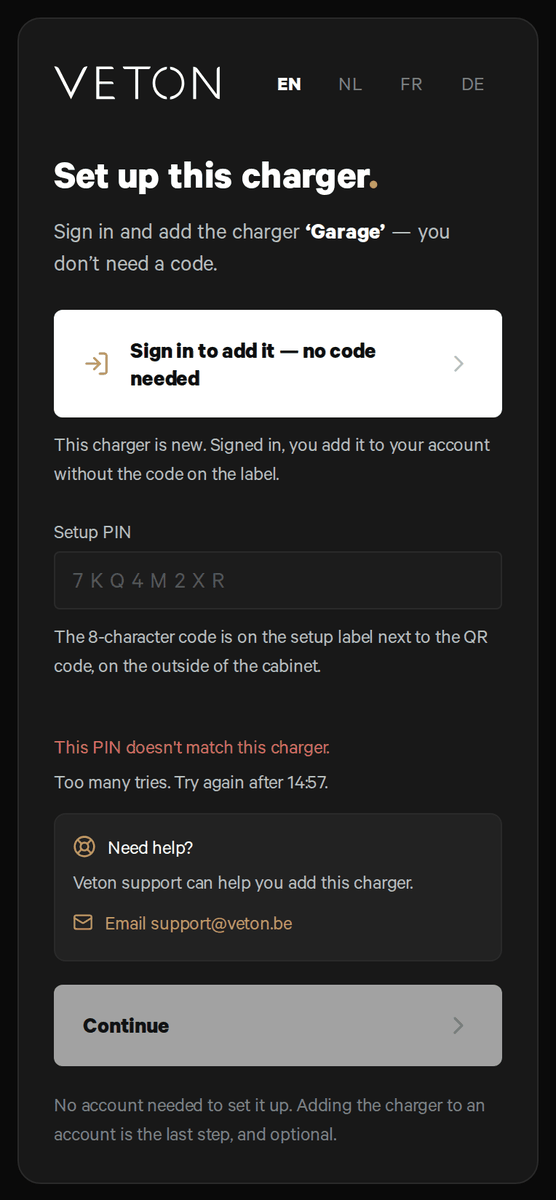
- After 5 refused codes, adding with the setup PIN is paused for 15 minutes. The field is greyed out and the page says Too many tries. Try again after, followed by the time. At that time the field opens again. After the pause you have one try; another refused code pauses it again.
- After 25 refused codes in total, the setup PIN is locked. The page warns before this happens. Your installer, if the charger is linked to their company, or Veton support can then add the charger for you.
- If the page says the sticker may be outdated, the code on it may no longer belong to the charger. Your installer or Veton can add the charger for you.
The wizard, step by step
After the PIN the wizard opens. Each screen has a Continue button and a progress bar at the top so you know how far along you are.
The wizard has nine steps. It has ten in two cases, never both at once:
- If you are signed in and the charger has no owner yet, it starts with an extra screen, Add your charger, where you check the serial number.
- If you set up a charger again with the PIN, it adds a Transfer ownership step, see below.
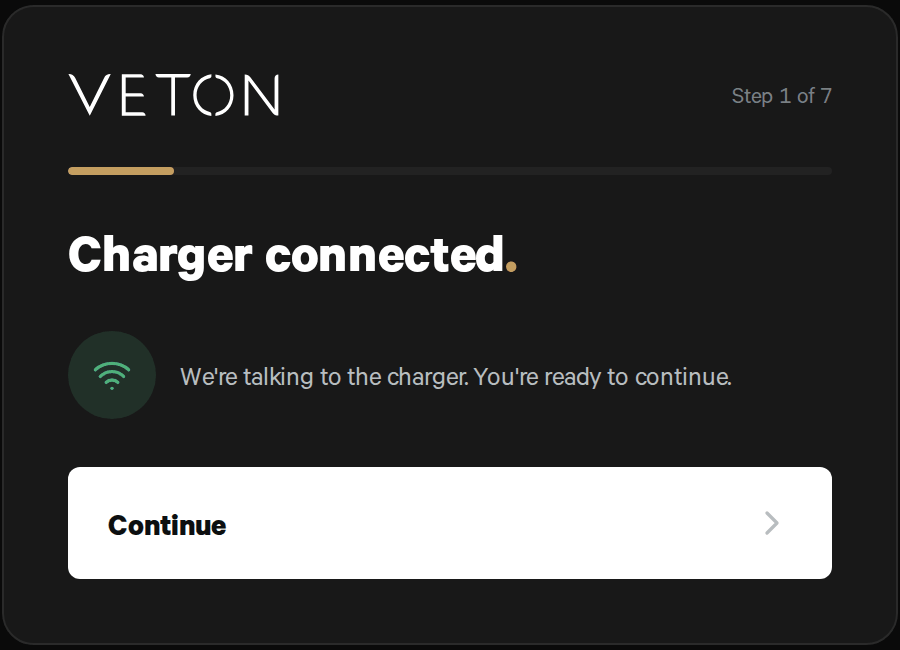
- Charger connected. The wizard checks that it can reach the charger over the internet. Until it does, the screen reads Connecting to your charger and says this can take a moment on first power-up. If it stays that way, check the charger's network connection.
- Load management. Tell the charger the building's main fuse and which site meter it may read, or hand the current decision to an external energy manager. This is usually set by your installer; you can leave it as it is.
- Authorization. Three tiles: Plug & charge, so anyone may plug in and charge; RFID whitelist, so only cards added to the charger may start a session; or OCPP backend, so a charging operator authorizes sessions. Without an account the OCPP backend tile is greyed out: connecting to a charging network needs you to sign in and add the charger first.
- Test the installation. The wizard asks the charger to test each charging point and shows the result.
- Address. Type the address, tap Search and pick your address from the list. The search runs on OpenStreetMap. Can't find it? Enter the coordinates instead. If the charger already has an address, the step says Address already set; tap Change to replace it.
- Your electricity price. Answer How do you pay for electricity?: Hourly price (dynamic contract), Day and night price (two-rate meter), or One fixed price. For day and night, type the day price and the night price; for a fixed price, type the price. Prices are in euro per kWh, for example 0.30. The day price runs from 07:00 to 22:00 and the whole weekend counts as night; Change hours lets you set other hours.
- Solar panels. Answer Do you have solar panels? For Yes, add one row per roof side: the size in kWp (for example 4.5, not 4500), the direction the panels face and the roof (Sloped or Flat). Up to 4 roof sides.
- Charging mode. Pick the everyday charging mode, for example Fast or Smart. Smart needs the address, and with a day and night price or one fixed price it also needs those prices; the step says so and offers Add address or Add price. Solar is not offered when you answered No solar panels. If the charger was on Solar and you then answer No solar panels, the wizard asks you to pick another charging mode.
- All set. A recap of everything above. Edit next to the address, the electricity price or the solar panels opens that step and brings you straight back here. Check it, then finish.
Steps 5 to 7 are optional. Skip for now leaves what the charger already has; Smart charging works best with all three filled in.
The setup PIN opens the wizard for about 30 minutes. If it runs out, scan the label again and enter the setup PIN once more; what you already saved on the charger stays.
Add the charger to your account
On the last screen you can add the charger to your Veton account and location so you can see it in the app and on the web. Tap Add to my account and sign in with the same account you use in the Veton app.
You may also skip this. The charger keeps working with the settings you chose, and the owner can add it later by scanning the label again and signing in.
What "already set up" means
If the charger is in someone's account now, scanning the label does not show a PIN field. Instead the page says the charger is already linked to an account and asks you to sign in first. After signing in you get two choices:
- Change settings: if the charger is yours, this opens the same wizard so you can change what was set.
- Set up again with the PIN: for a new owner, for example after moving into a house with a Veton charger. Type the setup PIN from the label. The wizard then adds a Transfer ownership step where you keep the current owner, move the charger into a location of your own, or, for a charger linked to an installer company, hand it off to a customer by e-mail address. When the charger changes location, the previous owners are told by e-mail.
Only set up again a charger you own or have been asked to set up. The transfer removes the current owner's access, and they cannot add it back without the setup PIN.
For installers
When a customer cannot add a charger, for example after too many refused codes or with a lost label, an installer of the company the charger is linked to can add it without the setup PIN.
- Scan the setup label and sign in with your installer account.
- The page says your installer account can add this charger without the PIN. Under Who is this charger for?, choose For a customer.
- Type the customer's e-mail address and tap Invite customer. The customer's location is created and the customer is invited as its owner.
You can also open the charger in the portal and set its Location to a location linked to your company. When the charger is not linked to your company, Veton support helps: send an e-mail to support@veton.be with the serial number.
Something not working?
Ask your installer first. You can also reach Veton through the contact page.