Your chargers on the web
Sign in at v2.vetoncontrol.com with your Veton account and find everything the app shows, on a bigger screen.
Ce guide n'est pas encore traduit dans votre langue. Vous le lisez en anglais.
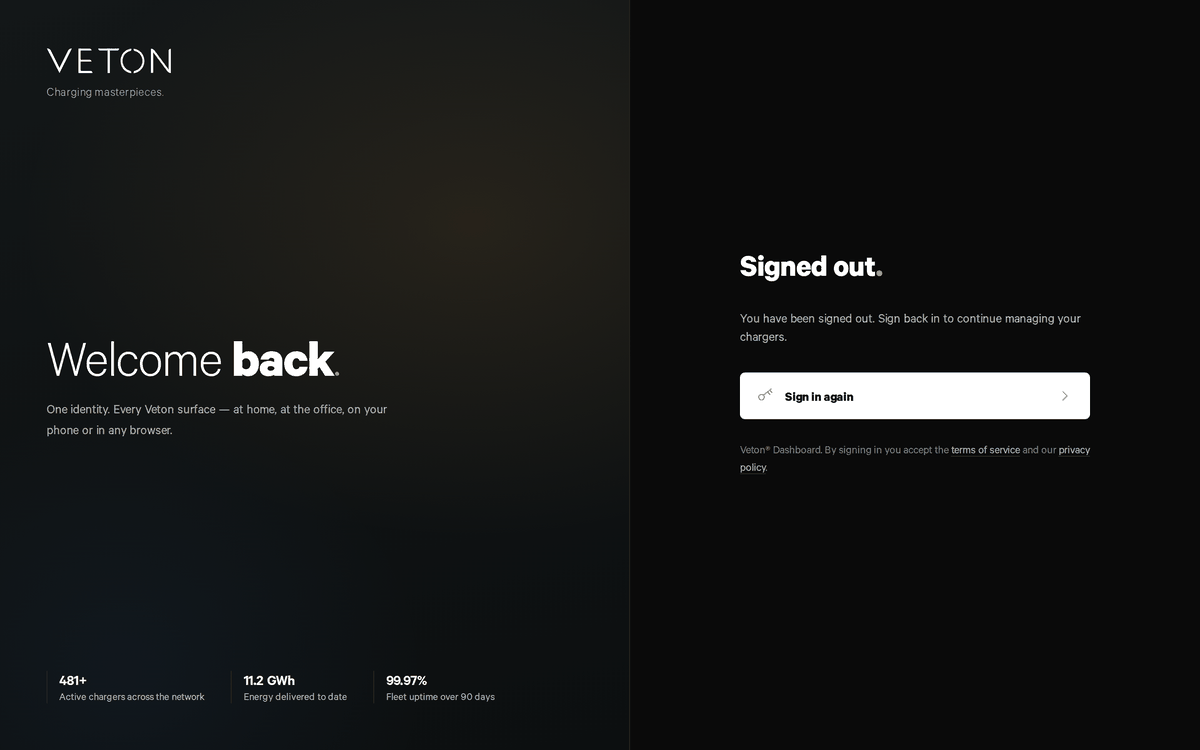
Sign in
The web dashboard at v2.vetoncontrol.com uses the same Veton account as the app. Whatever you signed up with, an e-mail address and password, Google or Apple, works here too.
- Open https://v2.vetoncontrol.com in a browser.
- Sign in. You are taken to the Veton sign-in page and back to the dashboard afterwards.
- Your session stays valid for months on the same browser; use Sign out at the bottom of the sidebar on a shared computer.
The overview page
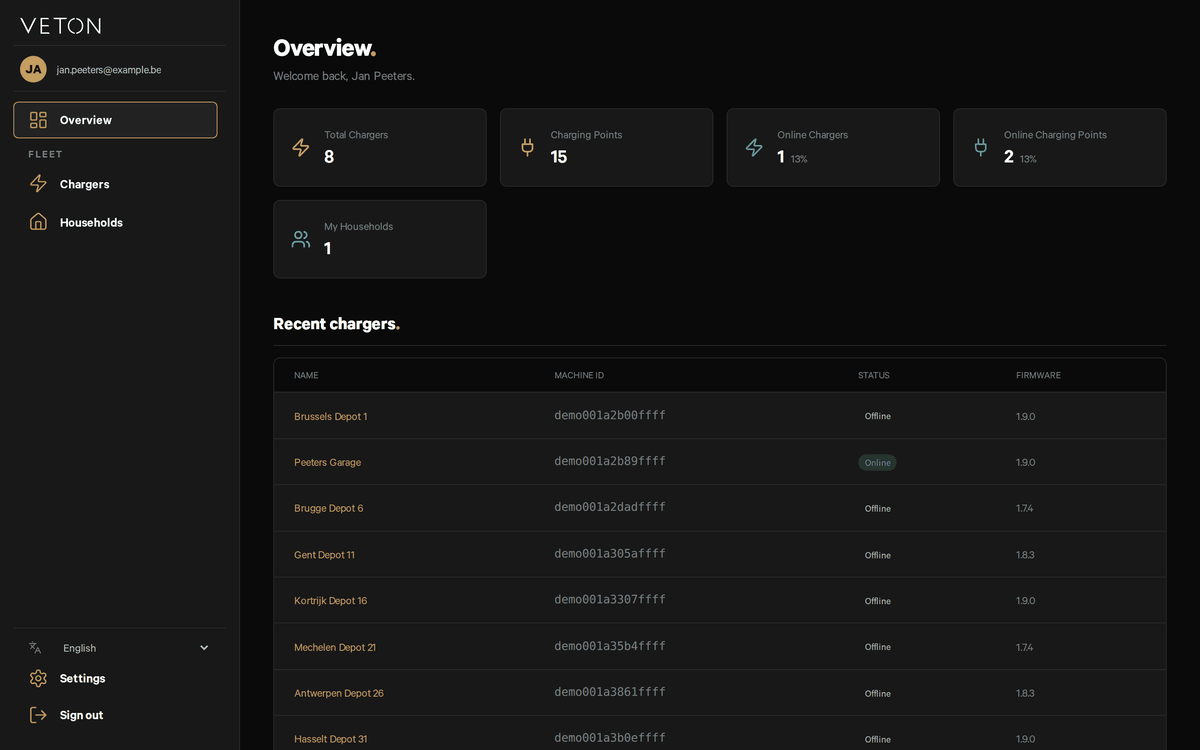
The first page counts your chargers and charging points, how many are online right now, and, under My Locations, the locations you belong to. For an installer, My Locations counts every location in your Locations list: the ones linked to your company and your own. Recent chargers underneath is a shortcut to the chargers you looked at last, with their status and firmware version.
The map
Under the counts, Map shows your chargers on a map. Chargers close together are grouped into one numbered circle; zoom in to split them. Click a marker to see the charger's name and location, with Open charger and Open location.
- Only a charger with an address is on the map. The line above the map says how many of your chargers it shows. The others have no address yet, or their location is not shared with you: someone who shares a charger with you can leave out the right to see its details.
- A charger gets its address in the Address step of the setup with the QR label, or later under Smart charging setup on the charger's Settings tab.
- Scrolling the page does not zoom the map. Use the + and - buttons, or pinch on a phone.
Set up a charger from the QR label without the app
The sidebar on the left is the same on every page: Overview, Chargers, Locations, then a language switcher, Settings and Sign out.
The chargers list
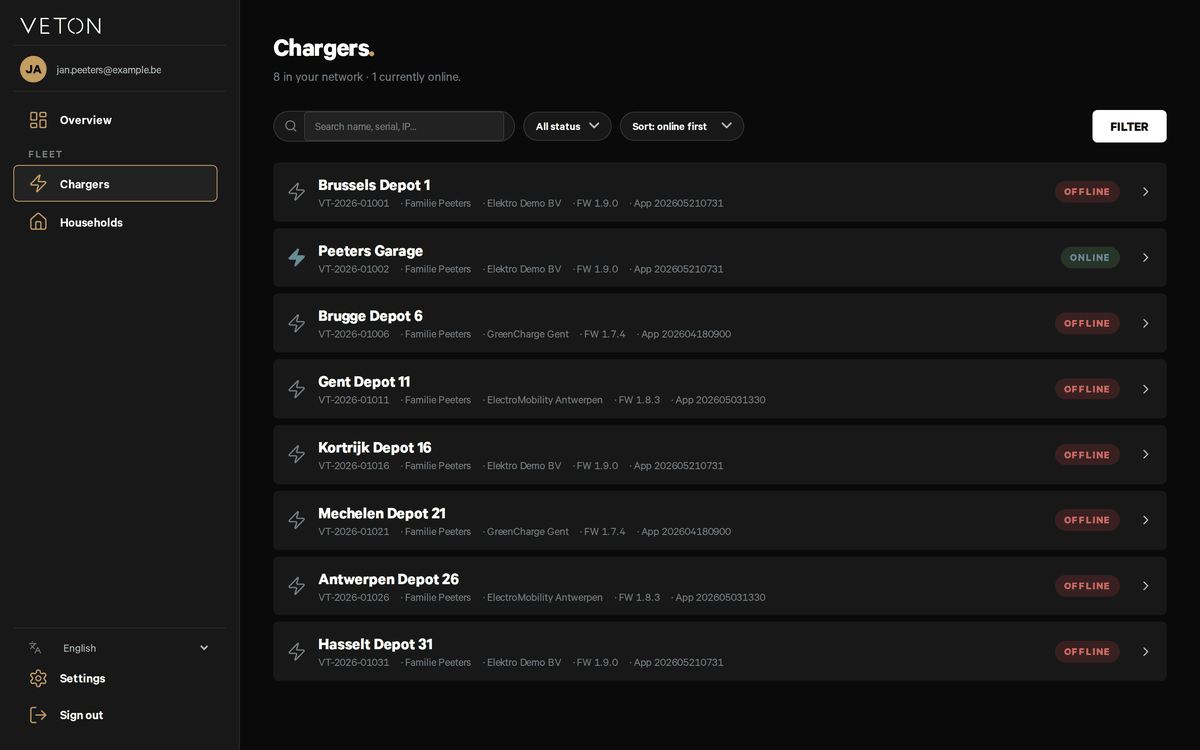
Chargers lists every charger you have access to. Search by name, filter by online or offline, and sort. Each row shows the location the charger belongs to, the installer company and the firmware version, with an Online or Offline badge on the right. Click a row to open the charger.
Recently removed
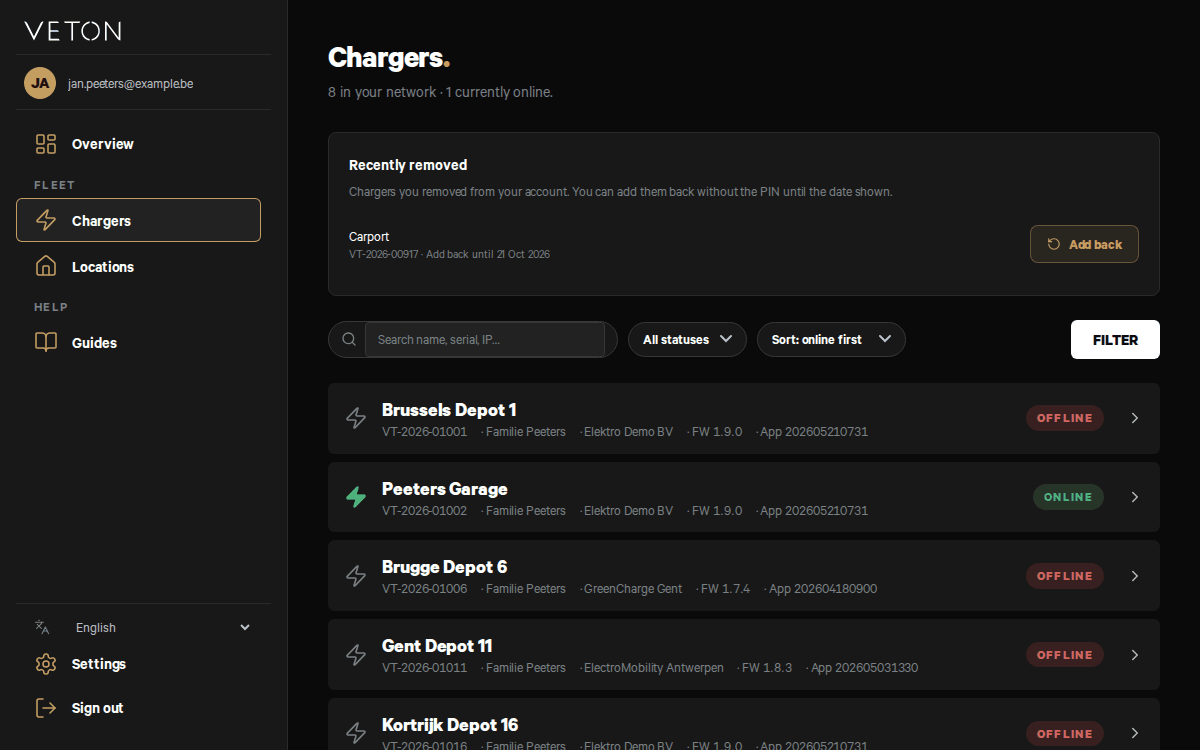
Removed a charger from your account in the last 30 days? It is listed under Recently removed, above the search box, with the date until which you can add it back without the PIN, and an Add back button. You see this block only when there is something in it.
The charger page
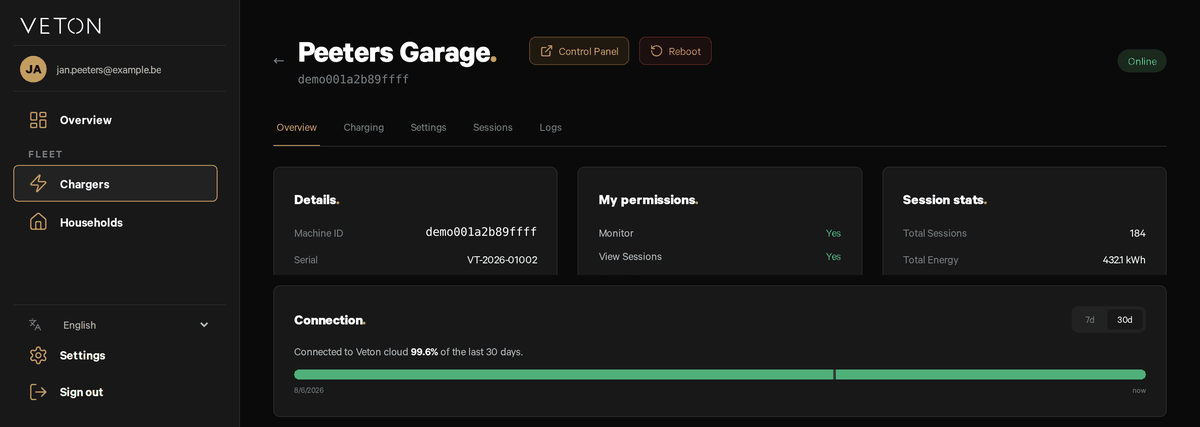
The charger page has a header with the charger's name, a Control Panel button that opens the charger's own web page, a Reboot button, and the online badge. Underneath are five tabs: Overview, Charging, Settings, Sessions and Logs. Which of them you see depends on what you may do on the charger; the Overview tab lists that.
Overview
Details shows the charger's identifiers, the location and installer it is linked to, when it was claimed and the model. My permissions lists what you are allowed to do on this charger; the owner of the location has every permission. Session stats totals your charging, and Connection shows how much of the last 7 or 30 days the charger was reachable from the cloud.
Charging
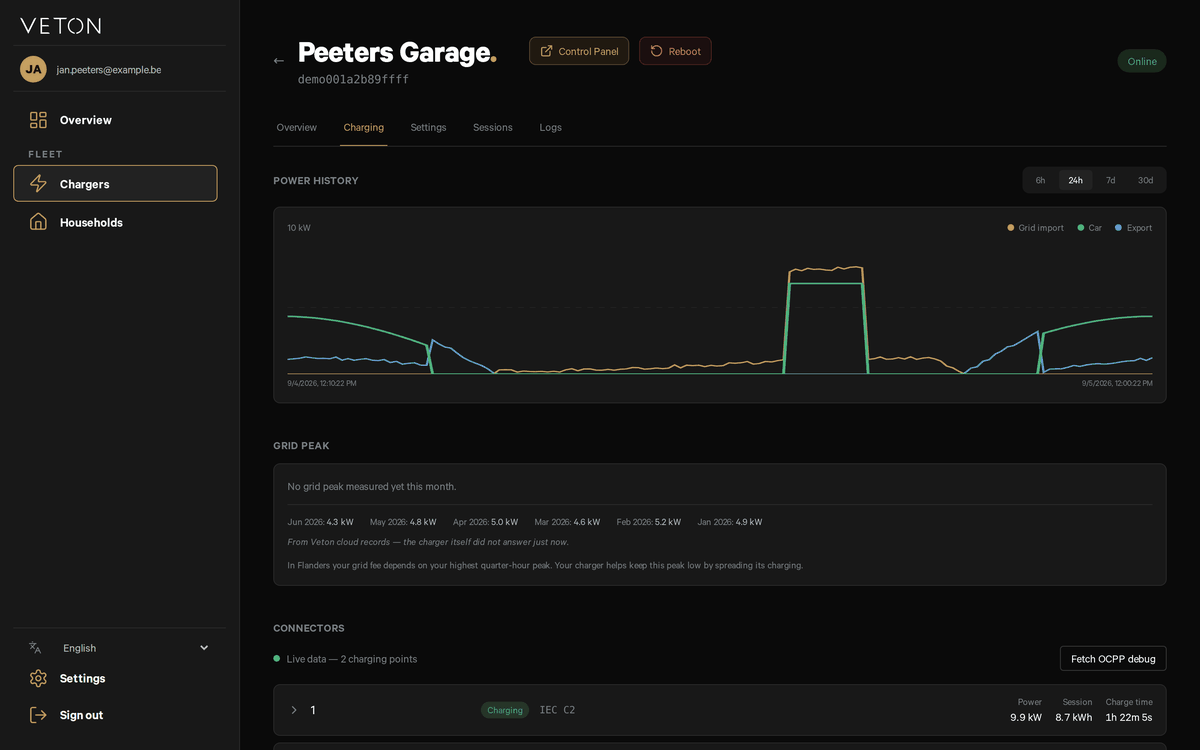
Power history draws grid import, car and export over the last 6 hours to 30 days. Grid peak shows your highest quarter-hour peak per month, which matters for your grid fee in Flanders. Connectors lists each charging point with live power, energy in the current session and charge time.
Settings
What a location may change lives here: Energy meter, the meter the charger reads for solar and grid limits; Charging limits, the fuses and phases; Smart charging setup, the solar and battery details; and RFID cards, the cards stored on this charger. Which sections you see depends on your permissions. Network Configuration, Charging Points and OCPP Configuration are installer matters; leave them to your installer.
Sessions
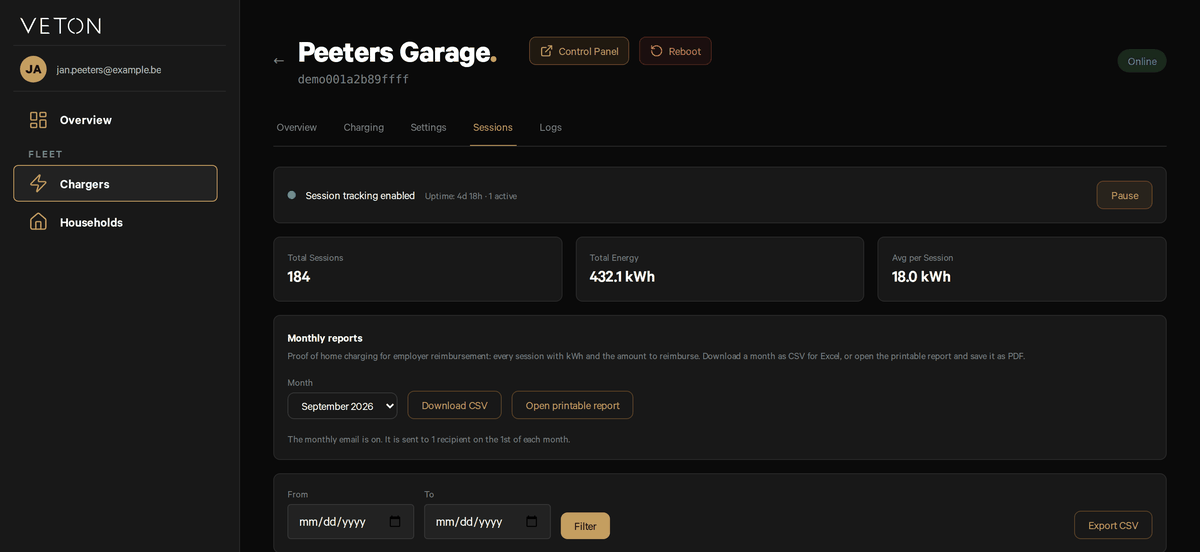
Every charging session with its start, end, duration and energy. Monthly reports gives you a month as a CSV file or a printable report, meant as proof of home charging for an employer. Filter by date and use Export CSV for any period.
Logs
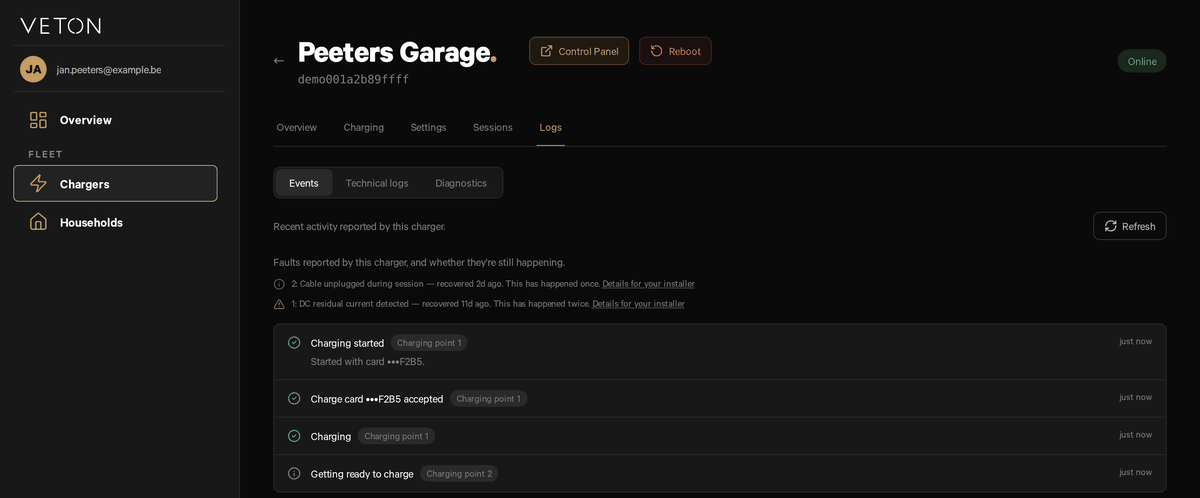
Events reads like a diary of the charger: charges started and stopped, cards accepted, and any faults it reported with whether they are still happening. Technical logs is the raw log the charger keeps, for your installer. Diagnostics lets you create a diagnostic report: the charger bundles its logs and settings into one archive that you can download and send to support when something needs a closer look.
Your account settings
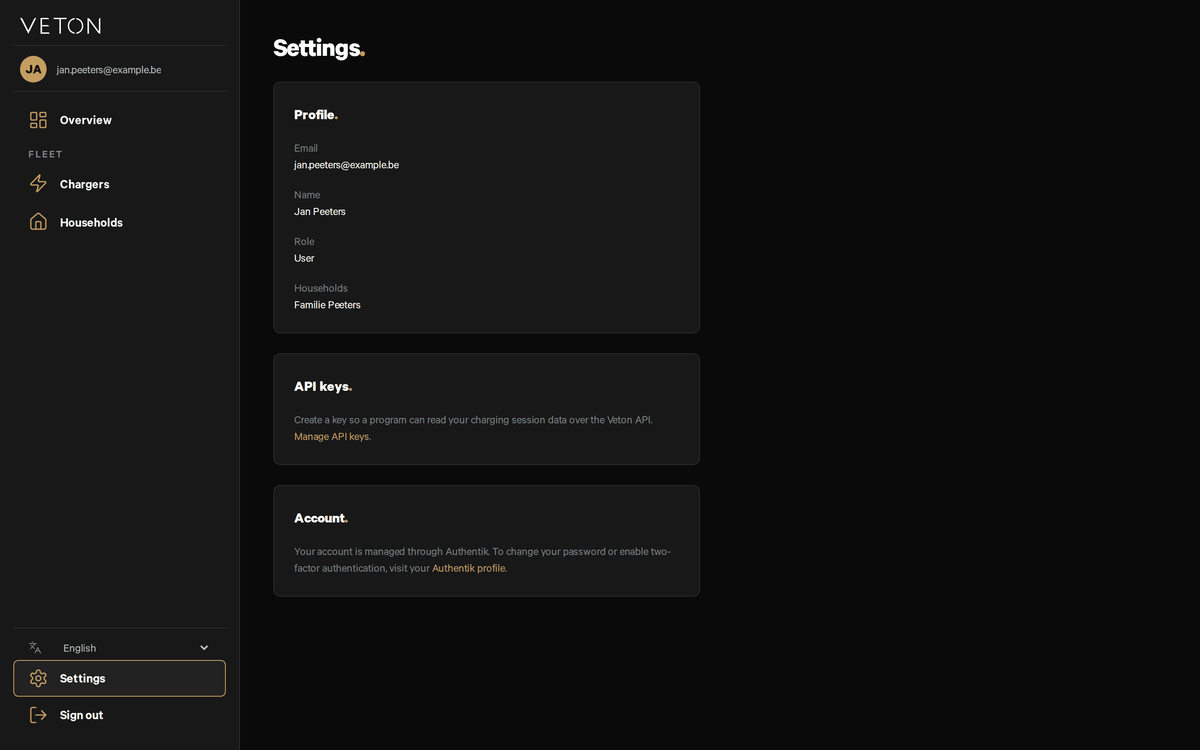
Settings at the bottom of the sidebar shows your profile, the locations you belong to and your role. Your password and two-factor authentication are managed on your Veton account profile, linked from this page. The API keys card lets a program of your own, such as home automation, read your charging data; open it with the Manage API keys link.
Something not working?
Ask your installer first. You can also reach Veton through the contact page.
Open the Veton web dashboard S’ouvre sur un autre site